
Have you ever opened the Photos app on your iPhone and wondered what those little symbols actually mean? From unfamiliar icons to hidden editing tools, it can be confusing to know what each one does and how it affects your pictures.
I’ve put together this guide to help you understand the symbols on iPhone Photos without the technical confusion. Whether you want to recognize photo information icons, understand editing options, or explore useful features, you’ll find clear explanations that are easy to follow.
You don’t need to be an iPhone expert to make the most of your photos. By the end of this guide, you’ll know what the most common symbols mean, how to use them, and which features can help you manage and improve your pictures with confidence.
Quick Meaning of Symbols on iPhone Photos
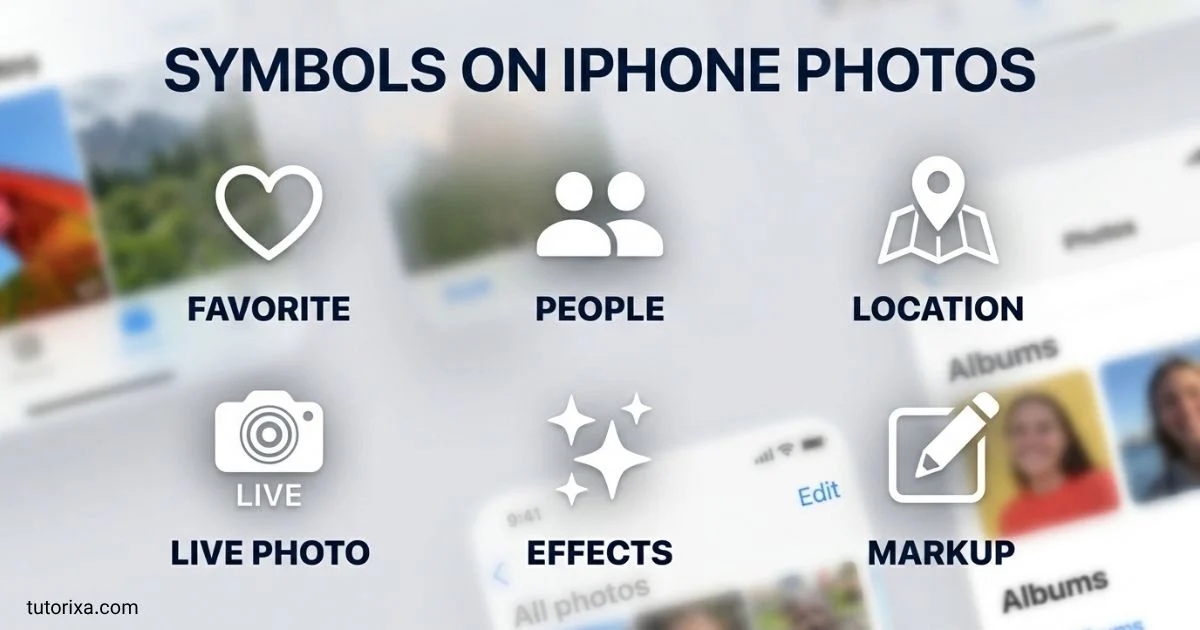
Symbols on iPhone Photos are small icons, badges, and indicators that identify photo features, editing tools, file information, and available actions. For example, a heart marks a favorite, a Live Photo icon identifies a moving photo, and a share icon opens sharing options. Other symbols indicate editing controls, playback, search, or storage-related information.
Symbols on iPhone Photos: Overview Table
The following table explains common symbols you may encounter in Apple’s Photos app. Exact icons and placements can change between iOS versions.
| Symbol or Icon | Name | Primary Meaning | Where You See It |
| Heart (♡) | Favorite | Marks a photo as a favorite | Photo viewer |
| Share (square with upward arrow) | Share | Opens sharing options | Photo viewer and toolbar |
| Three horizontal sliders | Adjustments | Opens photo adjustment tools | Edit screen |
| Three overlapping circles | Filters | Applies or previews image filters | Edit screen |
| Crop corners | Crop and rotate | Changes framing, orientation, and perspective | Edit screen |
| Information (ⓘ) | Info | Shows photo details and metadata | Photo viewer |
| Trash can | Delete | Moves a photo to Recently Deleted | Photo viewer |
| Magnifying glass | Search | Finds photos using text and other clues | Library and search |
| Play triangle | Play | Plays video or Live Photo content where supported | Photo viewer |
| Live Photo rings | Live Photo | Identifies a photo with motion and sound where available | Photo viewer |
| Starburst or sparkle | Featured or visual feature | May indicate a featured item or an available feature | Depends on screen and iOS |
| Person silhouette | People | Helps identify or browse people in photos | Albums and photo details |
| Pin or map | Location | Shows geographic information when available | Photo details or map views |
| Clock | Date or time | Relates to capture time or a time-based control | Details or editing |
| Three dots (•••) | More options | Opens additional actions | Various screens |
| Checkmark | Selection or confirmation | Indicates a selected item or confirms an action | Selection and editing screens |
| Plus (+) | Add | Adds items or creates certain collections | Albums and related screens |
| Arrow pointing left | Back | Returns to the previous screen | Navigation |
| Two arrows or expand corners | Full-screen or view control | Changes the viewing layout in supported contexts | Depends on screen |
| Sliders or dial | Editing control | Adjusts image appearance | Edit screen |
| Cloud symbol | Cloud status | May relate to downloading or syncing in certain interfaces | Depends on app or status display |
Important: Not every symbol in this table appears on every iPhone. Some icons have similar appearances but different functions depending on their location. The screen context is essential when identifying an unfamiliar symbol.
What Do the Symbols on iPhone Photos Mean?
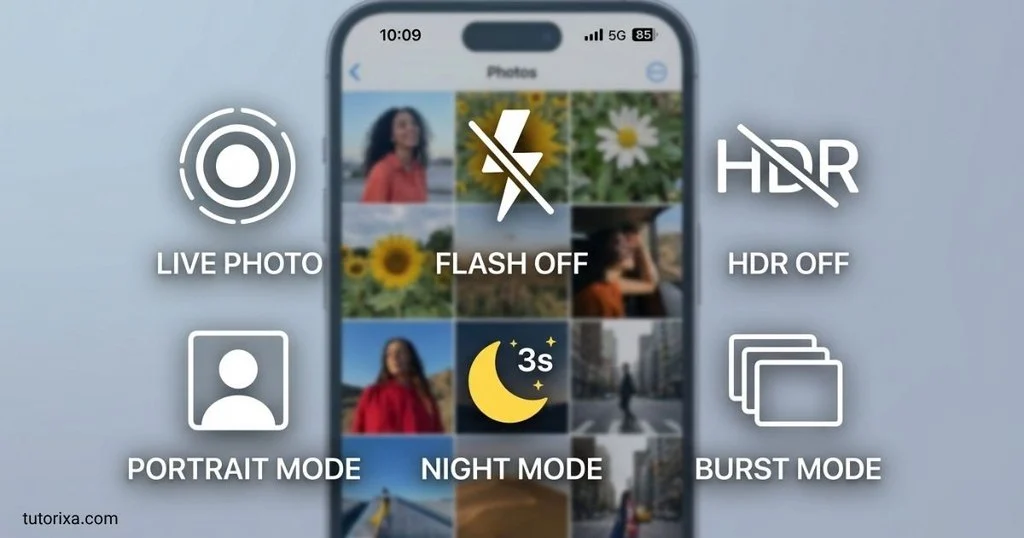
The symbols on iPhone Photos communicate three main kinds of information: what a picture contains, what you can do with it, and what information is associated with it.
1. Photo Information Symbols
Information symbols help you understand the details attached to an image.
The Info (ⓘ) button opens the information panel for a selected photo or video. Depending on the file and iOS version, this panel may show the date, time, filename, camera information, image dimensions, file format, location, and other metadata.
This information is useful when you want to identify when a picture was taken, find its original location, or distinguish between similar images.
2. Photo Action Symbols
Action icons allow you to interact with your pictures.
- Heart: Adds or removes a photo from Favorites.
- Share: Opens options for sending, copying, or sharing an image.
- Trash can: Deletes a selected picture.
- More options: Provides additional actions depending on the image and software version.
- Checkmark: Confirms a selection or action in supported interfaces.
These symbols do not usually describe the contents of a photo. Instead, they control what happens to it.
3. Editing Symbols
Editing icons appear when you open a picture and select Edit.
The three-slider symbol generally represents image adjustments, such as exposure, brightness, contrast, and color controls. The overlapping circles represent filters, while crop corners indicate framing and orientation tools.
These controls let you modify how a picture looks without needing a separate photo-editing application.
4. Content and Feature Indicators
Some symbols identify a special type of photo or a feature associated with it.
For example, the Live Photo indicator identifies an image that includes a short moment of motion around the still photograph. Video controls indicate playable content, while people and location features help organize images by recognizable subjects or places.
A symbol may therefore describe the file itself rather than an action you can perform.
History and Origin of iPhone Photo Symbols
The symbols in iPhone Photos developed alongside Apple’s broader approach to graphical user interfaces, digital photography, and mobile software.
Early Digital Photo Interfaces
Early digital cameras and photo-management programs relied on buttons, text labels, menus, and small graphical indicators. As mobile screens became more capable, developers increasingly used compact icons to make common actions accessible without taking up much screen space.
Apple adopted this approach across its operating systems. Familiar shapes, such as a magnifying glass for search and a trash can for deletion, help people recognize actions without reading long descriptions.
The Evolution of the iPhone Photos App
The original iPhone introduced a simple way to browse pictures on a touchscreen. Over time, the Photos app gained features for albums, editing, videos, location information, facial recognition, cloud syncing, and more advanced image management.
Each new capability created a need for additional controls and indicators. As a result, the symbols visible in the app have changed with different iOS releases.
Why Some Icons Change
Apple periodically updates the appearance, placement, and behavior of interface icons. A control that appears in a toolbar in one version may move into a menu in another.
The purpose may remain similar even when the visual design changes. However, you should not assume that every symbol retains exactly the same function across all screens or software versions.
There is no single historical origin for all iPhone Photos symbols. Many are adaptations of established interface conventions, while others represent features specific to Apple’s software.
Symbolism and Interpretation of iPhone Photo Icons
The meaning of an interface icon comes primarily from its function and context, rather than from cultural symbolism.
The Heart Symbol: Favorites and Personal Importance
The heart is commonly associated with affection, appreciation, and personal preference. In the Photos app, its practical meaning is simpler: it marks a picture as a favorite.
You might use it for family pictures, memorable trips, important documents photographed for reference, or images you want to find quickly.
The heart does not automatically mean that a photo is private, protected, or shared with someone else.
The Share Symbol: Communication and Connection
The square with an upward-pointing arrow is widely recognized in Apple interfaces as the Share button.
Its design suggests sending something outward. In practice, it opens available ways to share or transfer a photo, depending on your settings, apps, and device.
Sharing a picture does not necessarily make it publicly available. The result depends on the destination and sharing method you choose.
The Information Symbol: Knowledge and Context
The information icon represents access to additional details.
In Photos, these details can help establish a picture’s date, technical characteristics, or location. The icon itself does not mean that the information is complete or guaranteed to be accurate.
For example, a location may be missing because location recording was disabled or because the image was imported without its original metadata.
The Trash Can: Removal
A trash can generally represents deletion. In Photos, deleting an image normally moves it to Recently Deleted before permanent removal, subject to the app’s current behavior and the item’s circumstances.
The icon does not necessarily mean that the image disappears permanently the instant you tap it.
The Edit Symbols: Creative Control
Editing symbols represent the ability to change the presentation of an image.
Cropping changes the visible frame, filters alter the visual style, and adjustment controls modify characteristics such as brightness and contrast. These tools can influence the mood of a picture, but they do not inherently communicate a particular emotional or cultural meaning.
Cultural Significance of iPhone Photo Symbols
iPhone Photos symbols are part of a global visual language that allows people to interact with technology across different languages.
Universal Visual Conventions
Some icons draw on familiar objects. A magnifying glass represents searching because it is associated with examining something closely. A trash can represents deletion because it resembles a container for discarded items.
These visual associations can make interfaces easier to understand, although not every user will interpret every icon identically.
Regional and Cultural Differences
The heart is generally associated with affection or appreciation in many contemporary digital environments, but its broader cultural meanings vary. Similarly, the hand, person, or location symbols used in digital interfaces may carry different associations depending on culture and context.
Apple’s interface conventions are intended to communicate practical functions rather than make claims about a culture’s beliefs.
Accessibility and Language
Icons can reduce dependence on written language, but they do not eliminate language barriers completely. Some symbols are abstract or unfamiliar, particularly to people using a device for the first time.
Accessibility labels, spoken descriptions, and explanatory text help users understand an icon’s purpose. This is one reason an icon’s function should not be inferred from its appearance alone.
Scientific and Technical Meaning of iPhone Photos Symbols
Several symbols relate to technical features of digital photography.
Live Photos
Live Photos capture a still image along with a short sequence of motion and, where available, associated sound. The feature allows users to revisit a moment with more context than a single static image.
A Live Photo is not the same as a conventional video. It combines a primary still image with additional motion content.
HDR
HDR stands for High Dynamic Range. In photography, it refers to techniques that help represent a wider range of brightness levels, particularly in scenes containing both bright highlights and dark shadows.
Depending on the iPhone model, capture settings, and software version, HDR processing may be applied automatically or controlled through camera settings. HDR-related information may appear in photo details or other parts of the interface, but its exact presentation can vary.
Photo Metadata
Metadata is information associated with a digital file. Photo metadata can include capture time, camera settings, image dimensions, and geographic coordinates.
The Info panel may display some of these details. The availability of individual fields depends on how the image was captured, edited, exported, or imported.
Metadata can be useful for organizing photos, but it can also contain sensitive information. Consider location details before sharing an original image when privacy matters.
iCloud Photos and Synchronization
iCloud Photos can synchronize a user’s photo library across supported Apple devices when the feature is enabled and configured appropriately.
Some cloud-related indicators may appear in particular Apple interfaces or workflows, but a cloud-shaped icon should not automatically be interpreted as a universal Photos sync-status symbol. Its meaning depends on the screen where it appears.
Where the Symbols on iPhone Photos Are Used
Different areas of the Photos app display different groups of symbols.
Photo Library
The main library is designed for browsing pictures and videos. Search, selection, navigation, and viewing controls help you locate and manage items.
Depending on your iOS version, some actions may appear only after opening a photo or entering a selection mode.
Individual Photo View
When you open an individual image, you may find controls for sharing, favoriting, editing, deleting, and viewing information.
This is generally the best place to inspect a photo’s metadata or identify the actions available for that specific item.
Editing Screen
The editing interface contains controls for adjustments, filters, cropping, rotation, and other supported changes.
Some controls display adjustment values or additional options after you select them. A symbol’s function may therefore become clearer when you tap it and observe the label or tool panel.
Albums and Collections
Album-related screens use symbols for creating collections, selecting items, viewing people, and managing organized groups of images.
A heart can help identify Favorites, while people-related features can group images associated with recognized individuals. These features depend on the content of your library and the software version.
Sharing and Exporting
The Share menu provides access to available destinations and actions. These may include messaging, AirDrop, copying, saving to another location, or using compatible apps.
The available choices depend on your device, installed applications, permissions, and connectivity.
Common Variations of iPhone Photos Symbols
Icons may look different even when they relate to similar functions.
Filled and Outlined Hearts
A heart may appear filled or outlined depending on the interface state.
In the Photos app, the heart control is used to add or remove a photo from Favorites. The precise visual state can vary with the design of the current iOS version.
Different Share Icons
Apple commonly uses a square with an upward arrow for sharing. Other applications may use three connected dots, a curved arrow, or a different shape.
These symbols can all relate to sharing, but they are not necessarily interchangeable.
Live Photo and Video Symbols
A Live Photo contains a still image with additional motion content, while a video is a moving recording. Both may involve playback controls, but the underlying file types and editing options differ.
Do not assume that a play icon alone proves that an item is a video.
Editing Tool Variations
The symbols for filters, cropping, and adjustments can change in appearance or placement across iOS releases. A tool may also be presented differently depending on the editing context.
If you cannot find a control, check the visible labels, available menus, and software version rather than relying exclusively on an older screenshot.
Common Misconceptions About iPhone Photos Symbols
Several misunderstandings arise because icons are small and their meanings depend on context.
Misconception 1: A heart means the photo is private.
The heart identifies a favorite. It is not a privacy lock, and favoriting a picture does not automatically restrict who can access it.
Misconception 2: The Share icon means a picture has already been shared.
The Share button opens sharing options. It does not, by itself, confirm that a photo has been sent or published.
Misconception 3: An Info icon guarantees complete photo details.
The Info panel displays available information. Missing metadata, edited files, and imported pictures can have incomplete details.
Misconception 4: Live Photos are ordinary videos.
Live Photos combine a still image with a short motion sequence. They differ from standard video recordings in format and behavior.
Misconception 5: Every iPhone displays the same symbols.
The interface can vary by iOS release, device, feature availability, and viewing context. An icon in an online guide may not match your screen exactly.
Misconception 6: Deleting a photo always removes it permanently at once.
Deleted photos may remain in Recently Deleted for a limited period unless permanently removed earlier or handled differently under particular circumstances.
Misconception 7: A location symbol proves that the photo was taken at that place.
Location metadata may be absent, inaccurate, or altered. It is useful evidence about a file’s recorded location, not an independent guarantee of where the image was actually captured.
10 Interesting Facts About iPhone Photos Symbols
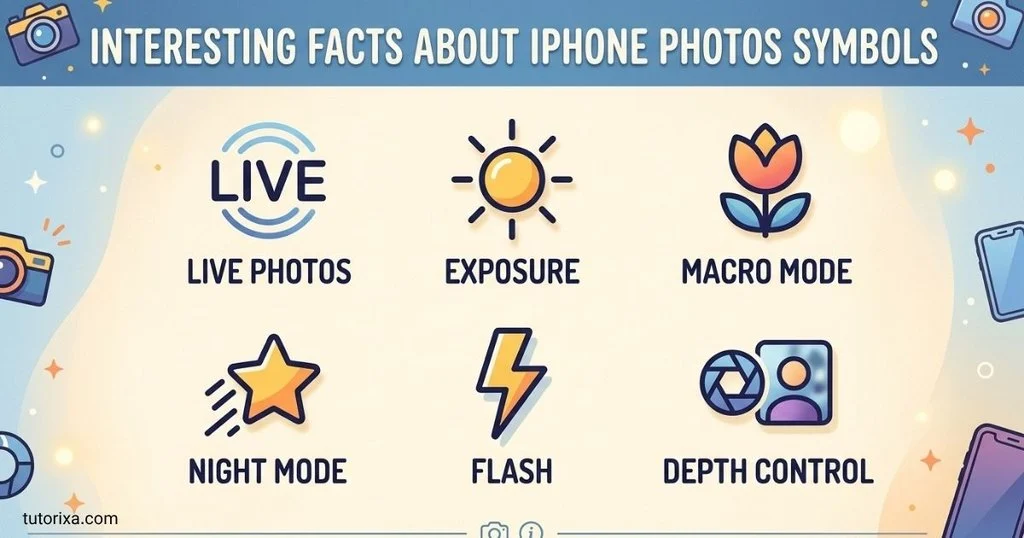
1. Many icons communicate actions without words. A magnifying glass or trash can can be recognized by users across different language settings, reducing the need for long written instructions.
2. A favorite is an organizational label. The heart makes selected pictures easier to revisit. It does not change the image’s resolution or automatically create a separate copy.
3. Live Photos preserve more than a still moment. Their motion component can capture a short sequence surrounding the primary image, adding context to a memory.
4. Photo details can reveal technical information. The Info panel may show image dimensions, camera details, file information, and other metadata that is not immediately visible in the picture itself.
5. An icon can have different meanings in different contexts. A symbol’s location and surrounding controls often provide essential clues about its purpose.
6. Sharing and publishing are not the same thing. Sharing options may send a picture to one recipient, transfer it to a nearby device, or open another app. They do not necessarily make it public.
7. Photo metadata can raise privacy questions. Location information can be helpful for organizing travel photos, but it may also disclose where a picture was captured if that information is shared.
8. Editing controls are designed to make common adjustments accessible. Brightness, color, filters, and cropping can be changed through visual tools without requiring professional editing software.
9. Interface symbols evolve with software. Apple can redesign controls, change their placement, or introduce new features, so older guides may not reflect the current interface.
10. Accessibility features help explain visual controls. Depending on the interface and settings, screen readers and accessibility labels can provide spoken descriptions of buttons that sighted users recognize visually.
Related Symbols in the Apple Ecosystem
Several symbols used in Photos also appear in other Apple apps.
| Related Symbol | Common Meaning | How It Relates to Photos |
| Magnifying glass | Search | Helps locate photos, subjects, or collections |
| Heart | Favorite | Marks selected pictures for quick access |
| Share arrow | Sharing | Opens ways to send or transfer content |
| Information icon | Details | Displays additional information about an item |
| Gear | Settings | Opens configuration options in supported apps |
| Ellipsis (•••) | More options | Reveals additional actions |
| Trash can | Delete | Removes an item from the current collection or library |
| Checkmark | Selection or confirmation | Indicates a chosen item or completed action |
Although these symbols appear across Apple’s ecosystem, their exact functions depend on the application and screen.
For example, the heart in Photos relates to favorite images, while a heart in another app may represent a different kind of preference or saved item. Context remains the most reliable guide.
Frequently Asked Questions
1. What do the symbols on iPhone Photos mean?
The symbols on iPhone Photos represent actions, image types, editing tools, and photo information. A heart marks a favorite, the Share icon opens sharing options, and the Info button displays available details about a picture. Other symbols help you edit, search, delete, navigate, or identify features such as Live Photos.
2. What does the heart symbol mean on iPhone Photos?
The heart symbol marks a photo or video as a favorite. Favorited items can be found through the Favorites collection or album, depending on the current interface. Tapping the heart again removes the favorite status. It does not make the photo private, protect it with a password, or automatically share it with another person.
3. What does the circle symbol mean on iPhone Photos?
A group of concentric circles is commonly associated with Live Photos, which combine a still image with a short sequence of motion. However, circular symbols can represent different features in different contexts. If you see an unfamiliar circle, check its location on the screen and any accompanying label before deciding what it means.
4. What does the information icon mean in the Photos app?
The Info button, commonly shown as an “i” inside a circle, opens additional details about a selected photo or video. Depending on the file, you may see its capture date, time, filename, dimensions, camera information, location, and other metadata. Some fields may be missing if the information was never recorded or was removed.
5. What does the Share icon mean on iPhone Photos?
The Share icon usually appears as a square with an upward-pointing arrow. Tapping it opens available options for sending, copying, transferring, or using a picture in another application. The exact options depend on your device, installed apps, permissions, and connectivity. Opening the Share menu does not mean the image has already been sent.
6. What does HDR mean in iPhone photos?
HDR stands for High Dynamic Range. It describes photography techniques that help preserve detail across bright and dark parts of a scene. Compatible iPhones can use HDR processing to improve how challenging lighting conditions are represented. Its availability and controls vary by device, camera settings, and software version, so the label may not appear in every photo’s details.
7. What does the Live Photo symbol mean?
The Live Photo symbol identifies a picture that includes a still image and a short motion sequence. Depending on the recording and playback settings, associated sound may also be included. Live Photos can make a captured moment feel more dynamic than a static image. They are different from conventional videos, which record continuous moving footage.
8. Why do my iPhone Photos symbols look different?
Icons can change because of iOS updates, device differences, screen layouts, and the feature you are using. Some controls also appear only after you open an image, tap Edit, or select multiple items. If a symbol does not match an online guide, look for a label or consult the instructions for your installed iOS version.
9. Can I hide or remove symbols from iPhone Photos?
Some controls appear only temporarily or in particular viewing modes, while others are part of the standard interface. Their visibility depends on the screen, iOS version, and available settings. You generally cannot remove every built-in Photos icon individually. If a symbol appears inside the image itself rather than in the app interface, it may be part of the original picture.
10. Do iPhone Photos symbols reveal whether someone has viewed or saved a picture?
Ordinary Photos interface symbols do not generally provide a universal record of who viewed or saved an image. A favorite, Info, or Share icon serves a different purpose. Activity information may be available in certain sharing services or collaborative features, but it depends on the service and its settings rather than on the standard Photos icons alone.
Key Takeaways: Symbols on iPhone Photos
- Heart: Marks a photo or video as a favorite.
- Share arrow: Opens sharing and transfer options.
- Info icon: Shows available photo details and metadata.
- Sliders: Provides image adjustment tools.
- Overlapping circles: Represents filters in the editing interface.
- Crop corners: Helps change framing, rotation, and perspective.
- Trash can: Deletes a selected item, often moving it to Recently Deleted.
- Live Photo indicator: Identifies a still image with additional motion content.
- Search icon: Helps locate pictures and collections.
- Cloud-related indicators: Must be interpreted in their specific interface context.
The most important rule is to consider where an icon appears. Its surrounding controls, labels, and screen provide better clues than its shape alone.
Conclusion
Understanding the symbols on iPhone Photos helps you manage pictures, explore editing features, recognize Live Photos, inspect image details, and share memories with greater confidence. Although many icons follow familiar visual conventions, their precise appearance and behavior can change with iOS updates and the screen you are using.
When you encounter an unfamiliar symbol, open the relevant photo, examine the surrounding controls, and check the Info panel or available labels. This simple approach can help you identify the icon without confusing a favorite marker, technical indicator, or editing tool with something else.
Ultimately, the symbols on iPhone Photos are practical guides to your photo library. Learning their meanings makes everyday tasks easier and helps you understand how your pictures are organized, edited, and shared.

I’m Ellis Montgomery, a British writer interested in the powerful language of symbols. I explore everything from traditional emblems and cultural signs to contemporary symbols found in modern life. My aim is to explain their meanings clearly while revealing the stories and ideas behind them, making symbolism fascinating and accessible to everyone.
Books:
- The Complete Book of Symbols
- Hidden Messages in Everyday Symbols
 Freddie Beaumont
 Rowan Whitaker