
If you type on your iPhone every day, I know how frustrating it can be to switch between letters, numbers, and symbols constantly. You want a keyboard that makes typing faster, easier, and more convenient.
I’ll show you practical ways to understand and use an iPhone keyboard with numbers and symbols without making things complicated. You’ll learn simple tips that can save time whenever you’re texting, searching, or entering information.
Whether you’re a beginner or simply looking for a smarter typing experience, you’ll find useful answers here. I’ll help you discover the options available and choose the approach that works best for you.
Quick Meaning
An iPhone keyboard with numbers and symbols is the alternate keyboard view used to enter digits, punctuation, currency signs, mathematical marks, and other special characters. On the standard onscreen keyboard, tap the 123 key to access numbers and common punctuation, then tap the #+= key to see additional symbols. The exact available characters can vary by language and keyboard layout.
iPhone Keyboard With Numbers and Symbols Overview
| Feature | Details |
| Keyboard Name | iPhone onscreen keyboard |
| Main Function | Enter letters, numbers, punctuation, and symbols |
| Number Key | 123 |
| Additional Symbol Key | #+= |
| Primary Category | Mobile input / digital typography |
| Platform | Apple iPhone |
| Layout | Varies by language and keyboard |
| Common Numbers | 0–9 |
| Common Symbols | @, #, $, %, &, *, +, =, /, and more |
| Related Features | QuickPath, autocorrection, predictive text, text replacement |
| One-Handed Layout | Left, center, or right |
| Related Keyboards | Emoji, international-language and alternative layouts |
| Unicode | Individual characters generally have their own Unicode code points |
What Is the iPhone Keyboard With Numbers and Symbols?
The iPhone keyboard with numbers and symbols is an alternate view of Apple’s onscreen keyboard designed for characters that are not displayed on the primary letter layout.
The normal keyboard is primarily arranged around letters. When you need to type a number, punctuation mark, currency sign, or mathematical character, you can switch to another keyboard view.
For example, the standard English keyboard can be changed to a number-and-punctuation layout by tapping 123. From there, another symbol layout can provide additional characters through the #+= key.
This design keeps the main keyboard relatively uncluttered while still providing access to a large range of characters.
What appears on the number layout?
Depending on the keyboard and language, you can typically find:
- 0 through 9
- Comma
- Period
- Apostrophe
- Question mark
- Exclamation mark
- Hyphen
- Currency symbols
- Parentheses
- Mathematical operators
- At sign
- Number sign
- Ampersand
- Quotation marks
The exact arrangement can differ because iPhone keyboards are language- and layout-dependent. Apple allows users to add keyboards for different languages and select alternative layouts where available.
How to Access Numbers on an iPhone Keyboard
The simplest way to type numbers is to tap 123 on the onscreen keyboard.
Once the number layout appears, tap the desired digit. For example:
123 → 4 → 8 → 2
produces:
482
After entering the number, you can tap the ABC key to return to the regular letter keyboard.
This is particularly useful when typing:
- Phone numbers
- Dates
- Addresses
- Prices
- Quantities
- ZIP codes
- Measurements
- Account numbers
- Mathematical expressions
A faster way to enter a single number
For occasional numbers, you do not always need to remain on the number keyboard. On supported iPhone keyboards, you can touch and hold the number/symbol key and slide to the desired character before releasing.
This can reduce the number of taps required when a sentence contains only one or two numbers.
How to Access More Symbols
For additional characters, open the number layout and tap #+=.
This exposes another collection of symbols and punctuation. Depending on the keyboard, you may see characters such as:
- +
- =
- <
- >
- %
- ~
- ^
- |
- \
- Brackets
- Braces
- Additional punctuation
Not every iPhone keyboard displays exactly the same characters in exactly the same locations. Language, region, and keyboard layout can affect the available options.
Why Does the iPhone Use Separate Keyboard Screens?
The main reason is space efficiency.
An iPhone screen is much smaller than a traditional physical keyboard. Permanently displaying every letter, number, punctuation mark, and symbol would make individual keys crowded and difficult to use.
Instead, iOS separates characters into logical layers:
- Letter keyboard for ordinary text
- Number and punctuation keyboard for digits and common symbols
- Additional symbol keyboard for more specialized characters
- Emoji and other keyboards when enabled
This layered approach balances accessibility with the limited space available on a phone screen.
History and Origin of the iPhone Keyboard
The iPhone introduced a software-based touchscreen keyboard with the original iPhone in 2007. Unlike physical mobile-phone keypads, the keyboard could change its appearance depending on what the user was entering.
That flexibility became one of the important characteristics of touchscreen phones.
Earlier mobile phones commonly used physical numeric keypads, where several letters shared the same number key. Smartphones with touchscreens could instead display a QWERTY-style letter arrangement and switch between different character sets.
Over time, Apple’s keyboard system gained additional capabilities, including predictive typing, QuickPath, international keyboards, text replacement, and accessibility controls.
The modern iPhone keyboard therefore represents a shift from a fixed physical input device to a contextual software interface.
How the Meaning of Keyboard Symbols Has Evolved
Keyboard symbols themselves are older than the iPhone. Many existed in mathematics, publishing, commerce, computing, or written language long before touchscreen smartphones.
For example:
- + is widely associated with addition.
- = indicates equality in mathematics.
- % represents percentage.
- $ commonly represents a currency unit.
- @ became especially important in email addresses and online communication.
- # has long had several uses, including numbering and notation, and later became strongly associated with hashtags.
The iPhone did not create these symbols. Instead, it placed many established characters into a compact digital interface.
Symbolism and Interpretation
Unlike traditional cultural symbols, iPhone keyboard symbols generally have functional rather than symbolic meanings.
A plus sign on the keyboard is primarily a character that can be inserted into text. Its meaning depends on context.
For example:
Mathematics:
5 + 3 = 8
Text:
“Call me +1 555…”
Programming:
a + b
The same character can therefore have different meanings across mathematics, language, technology, and everyday communication.
This is an important distinction: a keyboard symbol should not automatically be interpreted as having a universal cultural or spiritual meaning.
Cultural Significance of Keyboard Symbols
Keyboard symbols have become globally recognizable because digital communication crosses language and national boundaries.
However, their meanings can vary by culture, language, profession, and context.
Currency symbols provide a clear example. A dollar sign may represent different national currencies depending on the surrounding country or context. Similarly, quotation conventions, punctuation, decimal separators, and keyboard layouts differ among languages.
Apple addresses these differences by offering multiple international keyboards and alternative layouts. Users can add keyboards through Settings > General > Keyboard > Keyboards.
Language affects the keyboard
A keyboard designed for English does not necessarily provide the same arrangement as one designed for another language.
Some languages require:
- Accented characters
- Additional letters
- Different punctuation
- Different numeral systems
- Character candidates
- Specialized input methods
Apple’s keyboard system accommodates many of these requirements through language-specific keyboards.
Scientific and Technical Meaning
The numbers and symbols available through the iPhone keyboard have extensive technical applications.
Mathematics
Common mathematical characters include:
- + addition
- − subtraction
- × multiplication
- ÷ division
- = equality
- < less than
- > greater than
- % percentage
Some specialized mathematical characters may require character selection, another keyboard, an app-specific input method, or copy and paste.
Computing
Symbols such as these are common in computer languages and technical writing:
- @
- #
- $
- %
- &
- *
- /
- \
- _
- |
- <
- >
Their meanings depend heavily on the programming language or technical system.
Internet and communication
The @ character is especially important for email addresses and online usernames.
The # character is used for numbering in some contexts and became widely associated with hashtags on social platforms.
The period, comma, colon, semicolon, slash, and parentheses are also fundamental to digital communication.
Where the iPhone Number and Symbol Keyboard Is Used
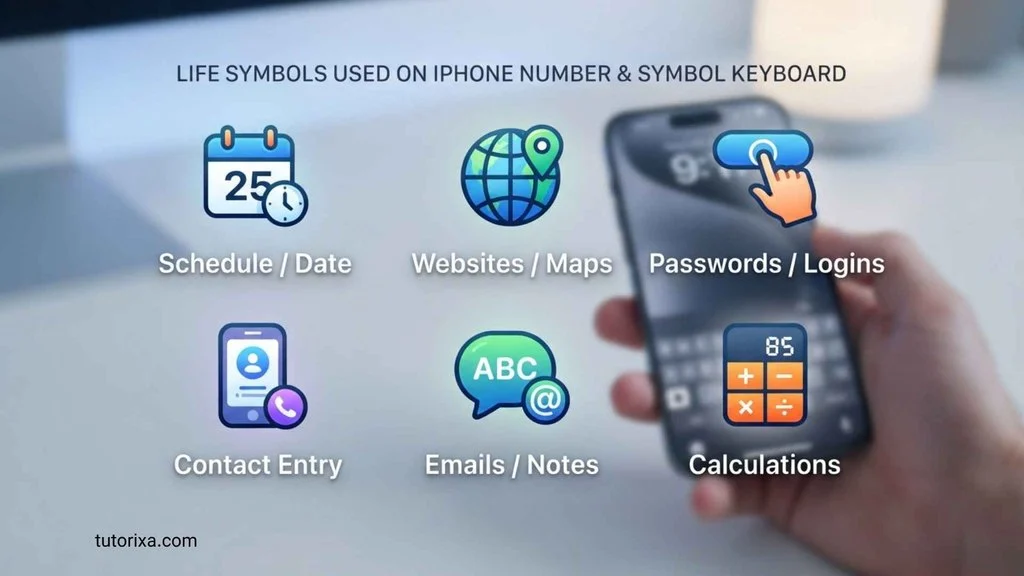
The keyboard is used throughout the iPhone wherever text input is supported.
Messages
You can use numbers and symbols when sending:
- Phone numbers
- Prices
- Dates
- Questions
- Addresses
- Casual messages
Notes
Notes often require a combination of letters, numbers, punctuation, and symbols for lists, calculations, references, and personal writing.
Safari and websites
Web forms commonly require:
- Email addresses
- Passwords
- Search queries
- Numbers
- Dates
- Addresses
The @ symbol is essential for standard email addresses, while punctuation and numbers are frequently needed in subjects and messages.
Social media
Hashtags, usernames, captions, numbers, and punctuation make extensive use of the symbol keyboard.
Documents
Writing assignments, reports, articles, and other documents may require quotation marks, parentheses, mathematical symbols, currency signs, and punctuation.
Common Variations
The iPhone keyboard is not one identical layout for every user.
Language variations
Different language keyboards can place characters differently or include characters that are particularly important for that writing system.
Regional variations
Keyboard layouts may differ according to language and regional conventions.
Hardware keyboards
If you connect a physical keyboard to an iPhone, the experience changes substantially. Physical keyboards can use modifier keys and keyboard shortcuts that are different from the onscreen interface. Apple also provides alternative layouts for some hardware keyboards.
One-handed keyboard
iPhone also provides a one-handed layout that moves the onscreen keyboard closer to the left or right side of the screen. Apple documents left-handed, default, and right-handed layouts.
How to Type Special Characters on iPhone
Many characters have alternate versions that appear when you touch and hold a related key.
For example, holding a letter can reveal accented versions such as:
e → é, è, ê, ë
The available choices depend on the keyboard.
Apple also notes that numbers and symbols can sometimes provide related alternate characters through touch-and-hold interaction.
This feature is particularly useful when writing names or words that contain accents without installing a separate special-character application.
How to Add More Keyboards
If the characters you need are not convenient on your current keyboard, you can add another keyboard.
Go to:
Settings → General → Keyboard → Keyboards → Add New Keyboard
You can then choose a supported language or keyboard.
Apple also allows users to reorder or remove keyboards from this area.
This is useful for people who regularly communicate in multiple languages.
Text Replacement and Symbol Shortcuts
Another useful feature is Text Replacement.
Instead of repeatedly typing a long phrase, you can create a shortcut that expands into the desired text. Apple provides Text Replacement under keyboard settings.
For example, a user could create a shortcut for:
“My address is…”
and assign a short combination of characters to it.
Text Replacement can also be useful for frequently used symbols or phrases, provided the chosen shortcut does not interfere with ordinary typing.
Common Misconceptions
Is the iPhone keyboard itself a symbol?
No. The keyboard is an input interface. The individual characters displayed on it are symbols, letters, digits, and punctuation marks.
Does every iPhone have exactly the same symbols?
No. Keyboard content can vary according to language, layout, region, and other settings.
Does the # symbol always mean a hashtag?
No. A hashtag is a specific use of # in a particular digital context. The character has other historical and technical uses.
Does @ mean “at” everywhere?
Not necessarily. In an email address, @ separates the local part from the domain. In programming and other technical systems, it can have entirely different functions.
Are keyboard symbols emojis?
No. Ordinary keyboard characters and emoji are different categories, although both can be used in digital communication.
Does Apple have a permanent number row on every iPhone keyboard?
The standard onscreen iPhone keyboard does not simply function like a physical keyboard with a permanently displayed number row. Users normally access numbers through the number/symbol keyboard view.
Interesting Facts About the iPhone Keyboard
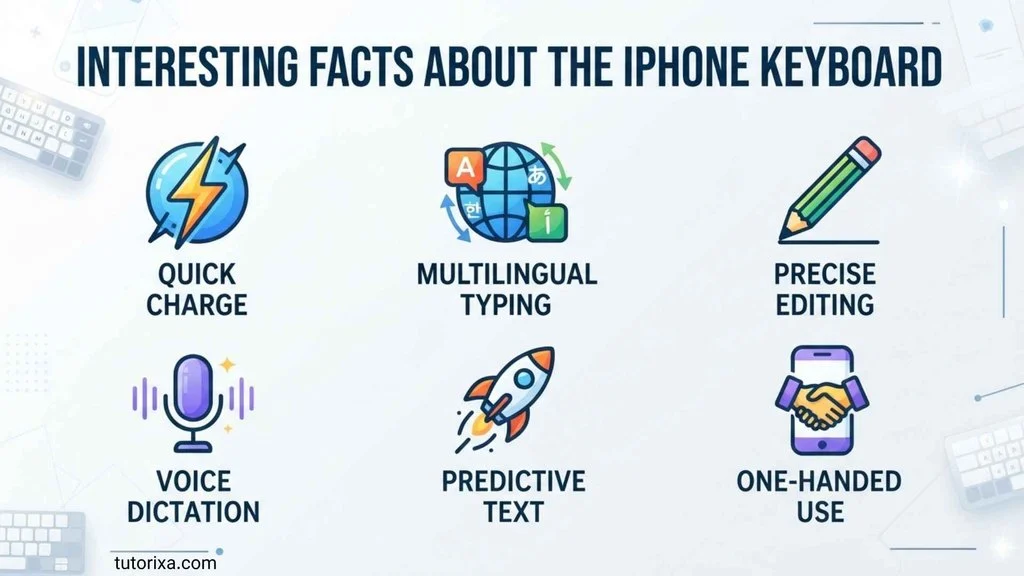
- The keyboard is software, not a fixed physical object.
iOS can change the characters and layout depending on language and settings. - Numbers and symbols are separated into keyboard layers.
This allows more characters to be available without making the primary letter keyboard excessively crowded. - QuickPath can reduce tapping.
On supported languages, users can slide from one letter to another to type words. - Holding a key can reveal alternate characters.
This is especially useful for accented letters and language-specific writing. - The Space bar has another function.
Touching and holding it can turn the keyboard into a trackpad for moving the insertion point. - The keyboard supports one-handed typing.
Users can move the keyboard toward either side of the screen. - Keyboard behavior can be customized.
Settings include features such as autocorrection, predictive text, and other typing options. - Keyboard feedback can include sound or haptics.
Apple provides controls for keyboard sound and haptic feedback in Settings. - International keyboards can change the available character set.
Adding another language may provide characters that are difficult to access from an English layout. - The same symbol can have several technical meanings.
Characters such as +, *, #, and @ can mean different things depending on the application or programming environment.
Related Symbols
The iPhone keyboard connects to many familiar digital symbols:
- @ — important in email addresses and online identifiers.
- # — used for numbering, notation, and hashtags.
- $ — commonly associated with dollar-denominated currency.
- % — represents percentage.
- & — ampersand, traditionally meaning “and.”
- * — asterisk, used in mathematics, computing, notes, and other contexts.
- + — addition or other technical operations.
- = — equality or assignment depending on context.
- < and > — comparison symbols in mathematics and programming.
- / — slash used in dates, paths, fractions, and computing.
- _ — underscore, common in usernames, filenames, and programming.
- ( ) — parentheses used in writing, mathematics, and code.
- [ ] — brackets used in writing, citations, mathematics, and programming.
- { } — braces commonly used in programming and mathematical notation.
These symbols are not interchangeable. Their meanings depend on the surrounding text, field, or technical system.
Frequently Asked Questions
How do I get numbers on my iPhone keyboard?
Tap the 123 key on the onscreen keyboard. This switches from the main letter layout to the number and punctuation layout. Tap the desired number, then use the ABC key to return to letters. The exact layout can vary depending on the language or keyboard you have selected.
How do I get symbols on my iPhone keyboard?
Tap 123 to open the number and punctuation keyboard, then tap #+= to access another group of symbols. The available characters depend on your selected keyboard and language. You can also touch and hold certain keys to reveal alternate characters.
Can I add another keyboard to my iPhone?
Yes. Open Settings > General > Keyboard > Keyboards > Add New Keyboard and choose the language or keyboard you need. Multiple keyboards can be installed, reordered, and switched while typing. This is useful when you regularly use different languages or character systems.
Why are numbers not permanently shown on my iPhone keyboard?
Apple’s standard onscreen keyboard uses separate views to provide more characters while keeping the main letter layout uncluttered. Tap 123 whenever you need numbers and common punctuation. This design makes room for a full letter keyboard while retaining access to numbers and symbols.
How can I type accented letters on iPhone?
Touch and hold the relevant letter. If alternate characters are available, they appear as choices. Slide your finger to the character you want and release it. For example, holding e can provide accented forms such as é and è, depending on the selected keyboard.
Can I move the iPhone keyboard to one side?
Yes. Touch and hold the Emoji or keyboard-switching key, then choose a left- or right-handed keyboard layout. The keyboard moves closer to the corresponding side of the screen. You can return it to the centered layout afterward.
Can I create shortcuts for symbols or phrases?
Yes. iPhone includes Text Replacement, which allows a short shortcut to expand into a longer word or phrase. You can configure it through Settings > General > Keyboard > Text Replacement. This can save time when repeatedly entering frequently used text.
Can I use an external keyboard with an iPhone?
Yes. iPhone supports external keyboards, including Apple’s Magic Keyboard and other compatible hardware. External keyboards provide a different typing experience and can support keyboard shortcuts and alternative layouts. Accessibility settings also provide controls for key behavior on physical keyboards.
Are iPhone keyboard symbols the same as Unicode symbols?
Many characters entered through the iPhone keyboard correspond to Unicode characters, but the keyboard itself is not a Unicode symbol set. Unicode defines standardized characters and their code points, while the keyboard provides an interface for entering selected characters.
Can the symbols change when I change languages?
Yes. Different language keyboards can have different layouts, characters, and input methods. Some languages require additional letters, diacritics, punctuation, or specialized character-entry systems. Switching or adding keyboards can therefore change which symbols are easiest to access.
Key Takeaways
- The iPhone keyboard with numbers and symbols provides access to digits, punctuation, currency signs, and other special characters.
- Tap 123 to open the number and punctuation layout.
- Tap #+= to access additional symbols.
- The exact keyboard layout can vary by language and region.
- Touching and holding certain keys can reveal alternate characters.
- International keyboards provide different characters and layouts.
- iPhone supports one-handed keyboard layouts.
- Text Replacement can create shortcuts for frequently used words and phrases.
- Many keyboard characters have meanings that extend beyond typing into mathematics, computing, commerce, and digital communication.
- Keyboard symbols should be interpreted according to context rather than assumed to have one universal meaning.
Conclusion
The iPhone keyboard with numbers and symbols is more than a simple collection of extra characters. It is a flexible input system that combines letters, numbers, punctuation, technical characters, international writing systems, and accessibility features within a small touchscreen interface.
Understanding the 123 and #+= layouts makes everyday typing easier, while features such as alternate characters, international keyboards, one-handed layouts, and Text Replacement provide additional flexibility. The symbols themselves also have much broader histories in mathematics, language, commerce, computing, and digital communication.

I’m Rowan Whitaker, a British writer fascinated by the symbols surrounding us every day. I explore their meanings, origins, cultural significance, and changing interpretations. From ancient marks to modern signs, I enjoy making symbolism easier to understand. My writing helps curious readers discover the hidden messages behind familiar shapes, images, and signs.
Books:
- The Meaning Behind Symbols
- A Modern Guide to Symbolism
 Ellis Montgomery
 Freddie Beaumont