
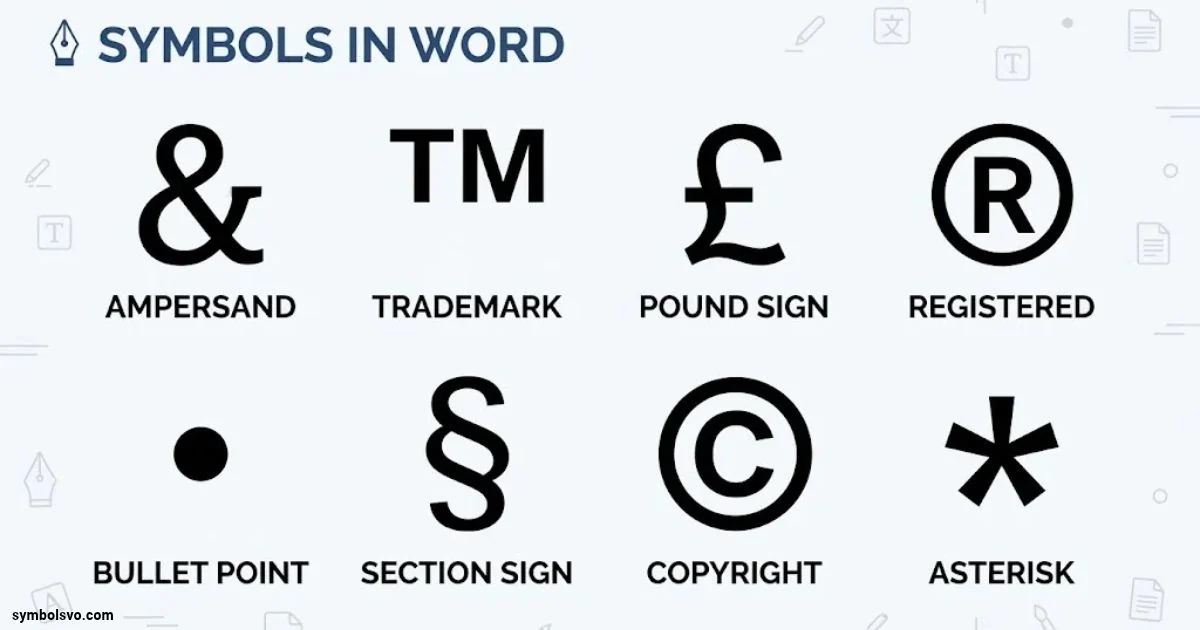
Symbols in Word make documents clearer, more professional, and easier to understand. From checkmarks and arrows to mathematical signs, currency symbols, and special characters, Microsoft Word offers many options for different writing needs.
If you’re creating a school assignment, business report, or personal document, these symbols can improve your formatting. Adding symbols is simple with the Insert tab, keyboard shortcuts, and Unicode codes. You can quickly find the character you need without interrupting your work.
In this guide, you’ll learn how to insert symbols in Word, explore useful symbol categories, and discover shortcuts that save time.
Types of Symbols in Word
Microsoft Word supports many types of symbols and special characters. These characters help users create documents for education, business, mathematics, engineering, communication, and everyday writing.
Here are the most common categories of symbols you can use in Word.
| Symbol category | Examples | Common uses |
| Currency symbols | $, €, £, ¥, ₹ | Financial documents and prices |
| Mathematical symbols | ±, ×, ÷, √, ∞ | Equations and calculations |
| Check mark symbols | ✓, ✔, ☑ | Lists and forms |
| Arrow symbols | →, ←, ↑, ↓ | Instructions and diagrams |
| Copyright symbols | ©, ®, ™ | Business and legal documents |
| Spanish symbols | ñ, á, é, ¿, ¡ | Spanish-language writing |
| Greek symbols | α, β, π, Ω | Science and mathematics |
| Geometric symbols | △, ○, □, ◇ | Shapes and technical documents |
| Music symbols | ♪, ♫, ♬ | Music-related content |
| Engineering symbols | ⌀, ∠, ⌖ | Engineering drawings |
| Formatting symbols | ¶, ·, → | Document editing and layout |
You can also find decorative characters, fractions, punctuation marks, and other Unicode symbols.
Where can you find these symbols?
Most standard symbols are available through the Insert tab in Word. Select Insert > Symbol > More Symbols to explore additional characters. The available collection depends on the selected font.
Symbols in Word Examples
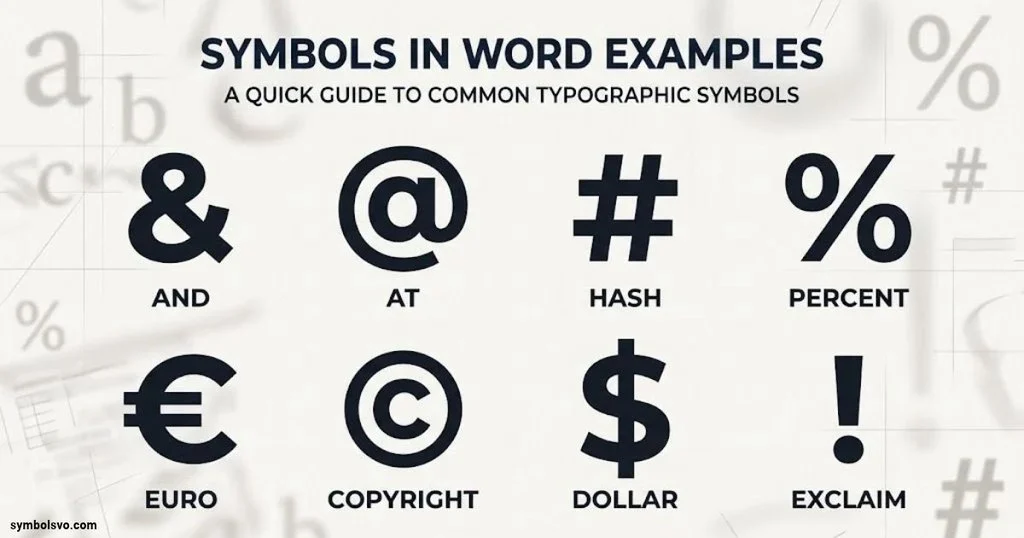
If you need ready-to-use characters, the following examples provide a useful collection of common symbols that you can copy and paste directly into your Word documents.
Common Special Symbols
| Symbol | Symbol name | Example use |
| © | Copyright | © 2026 |
| ® | Registered trademark | Brand® |
| ™ | Trademark | Product™ |
| § | Section sign | Section § 5 |
| ° | Degree | 30°C |
| № | Numero sign | № 25 |
| ¶ | Pilcrow | Paragraph mark |
| † | Dagger | Reference note |
| ‡ | Double dagger | Additional note |
| … | Ellipsis | And so on… |
Currency Symbols
| Symbol | Name | Currency |
| $ | Dollar sign | US dollar |
| € | Euro sign | Euro |
| £ | Pound sign | British pound |
| ¥ | Yen sign | Japanese yen |
| ₹ | Indian rupee sign | Indian rupee |
| ₩ | Won sign | South Korean won |
| ₽ | Ruble sign | Russian ruble |
| ₱ | Peso sign | Philippine peso |
| ₺ | Turkish lira sign | Turkish lira |
| ₴ | Hryvnia sign | Ukrainian hryvnia |
Check Mark Symbols
| Symbol | Name |
| ✓ | Check mark |
| ✔ | Heavy check mark |
| ☑ | Ballot box with check |
| ☐ | Ballot box |
| ✗ | Ballot mark |
| ✘ | Heavy ballot X |
Arrow Symbols
| Symbol | Name |
| → | Right arrow |
| ← | Left arrow |
| ↑ | Up arrow |
| ↓ | Down arrow |
| ↔ | Left-right arrow |
| ↕ | Up-down arrow |
| ⇒ | Rightwards double arrow |
| ⇐ | Leftwards double arrow |
| ➜ | Heavy round-tipped right arrow |
| ➤ | Black rightwards arrowhead |
Decorative Symbols
| Symbol | Name |
| ★ | Black star |
| ☆ | White star |
| ♥ | Black heart suit |
| ♡ | White heart suit |
| ◆ | Black diamond |
| ◇ | White diamond |
| ● | Black circle |
| ○ | White circle |
| ■ | Black square |
| □ | White square |
These symbols are useful for headings, lists, presentations, reports, invitations, and other documents. Remember that some characters may look different depending on the font and device.
How to Insert Symbols in Word
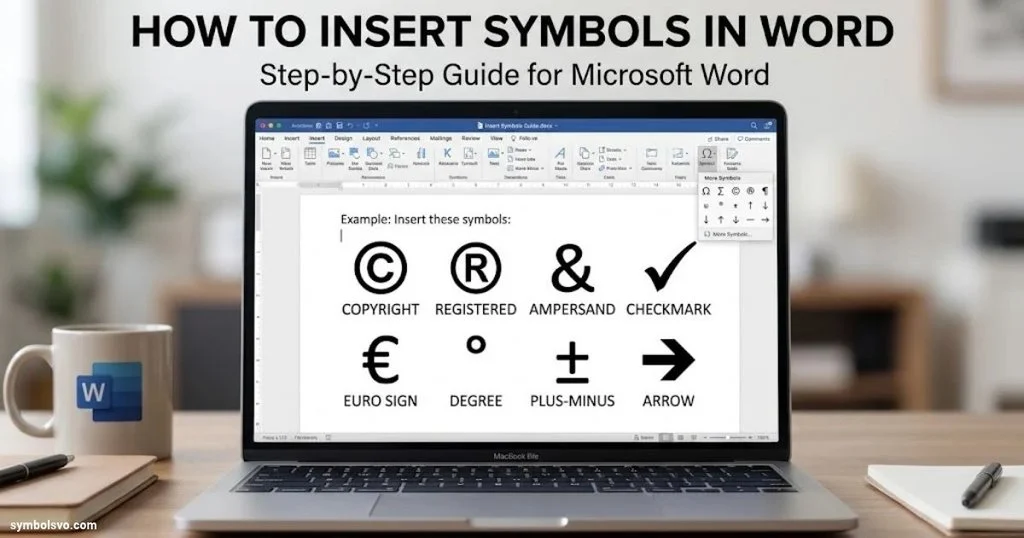
Microsoft Word provides a built-in symbol library that allows you to insert special characters into your documents. You do not need to search for each character online or install a separate application.
Follow these steps to insert a symbol.
Method 1: Use the Insert Symbol Option
- Open your document in Microsoft Word.
- Place your cursor where you want the symbol.
- Click the Insert tab.
- Select Symbol in the Symbols group.
- Choose a symbol from the available list.
- If you cannot find the required character, click More Symbols.
- Select the font and symbol you want.
- Double-click the symbol or select Insert.
- Close the symbol window.
Your selected character will appear at the cursor position.
Method 2: Insert Symbols Using Unicode
Unicode codes provide another way to insert special characters in Word.
For example, you can insert a square root symbol using its Unicode hexadecimal code.
- Type 221A into your document.
- Keep the cursor immediately after the code.
- Press Alt + X.
- Word will convert the code into √.
You can use this method for other Unicode characters as well.
Method 3: Copy and Paste Symbols
Copying and pasting is one of the easiest ways to insert special characters.
- Find the symbol you need.
- Select and copy it.
- Open your Word document.
- Place the cursor at the desired location.
- Press Ctrl + V to paste it.
This method is useful when you only need a few symbols and do not want to search through Word’s symbol library.
Tip: If a symbol appears as an empty box or question mark, try changing the font to one that supports the character, such as Segoe UI Symbol.
Symbols in Word Shortcut Key
Keyboard shortcuts help you insert frequently used symbols without opening the Symbol dialog box every time.
Some shortcuts use the Alt key and numeric keypad, while others use Unicode codes or combinations of keyboard keys.
Here are useful symbol shortcuts for Microsoft Word on Windows.
| Symbol | Name | Shortcut |
| © | Copyright | Alt + 0169 |
| ® | Registered trademark | Alt + 0174 |
| ™ | Trademark | Alt + 0153 |
| £ | Pound sign | Alt + 0163 |
| € | Euro sign | Alt + 0128 |
| ¥ | Yen sign | Alt + 0165 |
| ° | Degree sign | Alt + 0176 |
| ¼ | One-quarter | Alt + 0188 |
| ½ | One-half | Alt + 0189 |
| ¾ | Three-quarters | Alt + 0190 |
| ± | Plus-minus | 00B1 + Alt + X |
| × | Multiplication | 00D7 + Alt + X |
| ÷ | Division | 00F7 + Alt + X |
| √ | Square root | 221A + Alt + X |
| ∞ | Infinity | 221E + Alt + X |
| ≤ | Less than or equal to | 2264 + Alt + X |
| ≥ | Greater than or equal to | 2265 + Alt + X |
| ≠ | Not equal to | 2260 + Alt + X |
Important Keyboard Shortcut Tips
- For Alt codes, hold the Alt key and enter the numbers using the numeric keypad.
- Make sure Num Lock is enabled when required.
- For Unicode shortcuts, type the hexadecimal code and press Alt + X.
- Some shortcuts depend on your keyboard layout and Word version.
For example, if you want to insert the infinity symbol, type 221E and press Alt + X. Word will convert it into ∞.
You can also use Ctrl + Shift + 8 to display or hide nonprinting formatting characters in Word for Windows.
MS Word Symbols Code List
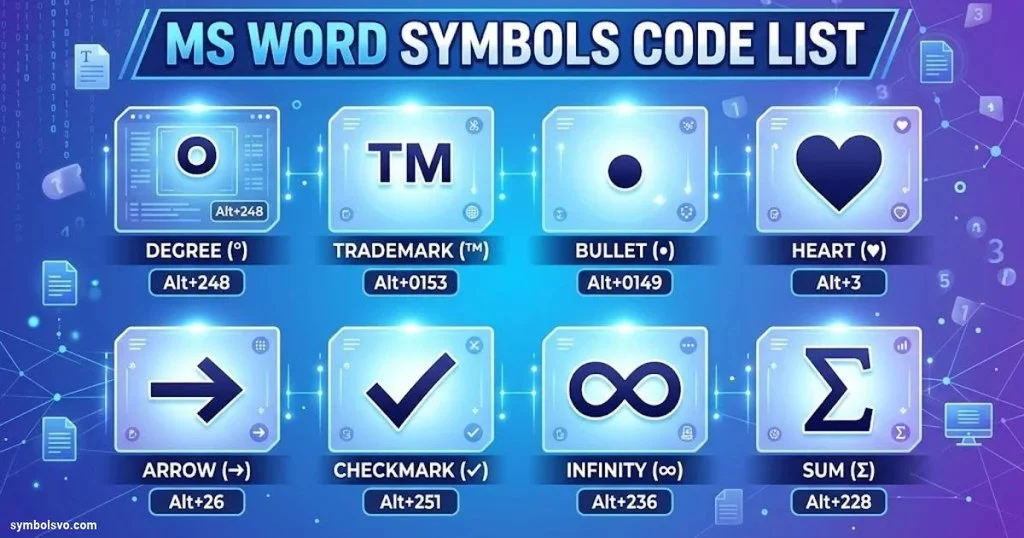
Microsoft Word supports many Unicode and character codes. These codes make it easier to insert special characters without manually searching through hundreds of options.
Below is a useful list of frequently used Unicode codes.
General Symbols Code List
| Symbol | Character name | Unicode code |
| © | Copyright sign | U+00A9 |
| ® | Registered sign | U+00AE |
| ™ | Trade mark sign | U+2122 |
| § | Section sign | U+00A7 |
| ¶ | Pilcrow sign | U+00B6 |
| ° | Degree sign | U+00B0 |
| † | Dagger | U+2020 |
| ‡ | Double dagger | U+2021 |
| … | Horizontal ellipsis | U+2026 |
| • | Bullet | U+2022 |
| ‰ | Per mille sign | U+2030 |
| € | Euro sign | U+20AC |
Mathematical Symbols Code List
| Symbol | Name | Unicode code |
| ± | Plus-minus sign | U+00B1 |
| × | Multiplication sign | U+00D7 |
| ÷ | Division sign | U+00F7 |
| √ | Square root | U+221A |
| ∞ | Infinity | U+221E |
| ≠ | Not equal to | U+2260 |
| ≤ | Less-than or equal to | U+2264 |
| ≥ | Greater-than or equal to | U+2265 |
| ∑ | N-ary summation | U+2211 |
| ∏ | N-ary product | U+220F |
| ∫ | Integral | U+222B |
| ∂ | Partial differential | U+2202 |
Arrow Symbols Code List
| Symbol | Name | Unicode code |
| ← | Leftwards arrow | U+2190 |
| ↑ | Upwards arrow | U+2191 |
| → | Rightwards arrow | U+2192 |
| ↓ | Downwards arrow | U+2193 |
| ↔ | Left-right arrow | U+2194 |
| ↕ | Up-down arrow | U+2195 |
| ⇒ | Rightwards double arrow | U+21D2 |
| ⇐ | Leftwards double arrow | U+21D0 |
| ⇔ | Left-right double arrow | U+21D4 |
How to Use Unicode Codes in Word
- Find the Unicode code for your desired character.
- Type the code without the U+ prefix.
- Press Alt + X.
- Word will convert the hexadecimal code into the corresponding character.
For example:
- 00A9 + Alt + X = ©
- 00AE + Alt + X = ®
- 20AC + Alt + X = €
- 221E + Alt + X = ∞
- 2211 + Alt + X = ∑
Make sure you select the correct font if the character does not display properly.
Symbols in Word Online
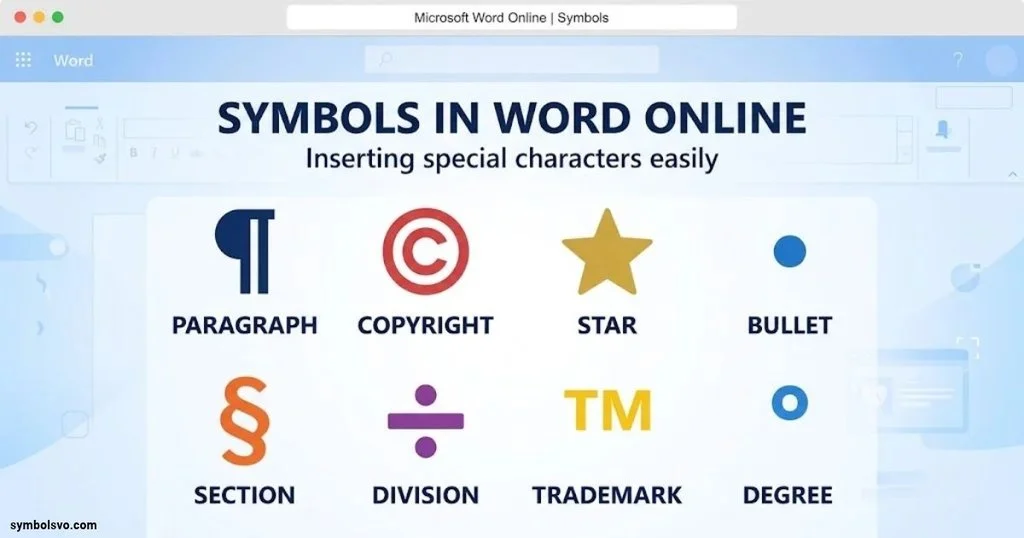
Word Online allows you to create and edit documents directly in your web browser. You can also work with special characters, mathematical signs, and other symbols.
However, its available symbol features and menus may differ from the desktop version of Microsoft Word.
How to Insert Symbols in Word Online
Try the following steps:
- Open Microsoft Word Online through Microsoft 365.
- Create a new document or open an existing one.
- Place your cursor where you want the symbol.
- Check the Insert tab for the available symbol or special-character options.
- Select the character if the required option is available.
- Insert it into your document.
Copy and Paste Symbols in Word Online
If you cannot find a particular character through the available menus, copy and paste is a simple alternative.
For example, you can copy these characters:
- Copyright: ©
- Trademark: ™
- Registered: ®
- Check mark: ✓
- Infinity: ∞
- Degree: °
- Euro: €
Paste the character into your online document using Ctrl + V.
Can You Use Unicode Codes in Word Online?
The desktop Word Unicode conversion shortcut, Alt + X, is not a feature you should assume works in every browser or Word Online environment.
If it does not work, use the copy-and-paste method or insert the character through the available menus. For more extensive symbol collections and advanced character options, the desktop application provides a more complete workflow.
Spanish Symbols in Word
Spanish writing uses special characters and punctuation marks that are not always available directly on a standard English keyboard.
These include accented vowels, the letter ñ, the uppercase Ñ, and inverted question and exclamation marks.
Here are the most common Spanish characters you may need in Microsoft Word.
Spanish Accent Symbols
| Symbol | Character name | Unicode code |
| á | Lowercase a with acute | U+00E1 |
| é | Lowercase e with acute | U+00E9 |
| í | Lowercase i with acute | U+00ED |
| ó | Lowercase o with acute | U+00F3 |
| ú | Lowercase u with acute | U+00FA |
| Á | Uppercase A with acute | U+00C1 |
| É | Uppercase E with acute | U+00C9 |
| Í | Uppercase I with acute | U+00CD |
| Ó | Uppercase O with acute | U+00D3 |
| Ú | Uppercase U with acute | U+00DA |
| ñ | Lowercase n with tilde | U+00F1 |
| Ñ | Uppercase N with tilde | U+00D1 |
| ü | Lowercase u with diaeresis | U+00FC |
| Ü | Uppercase U with diaeresis | U+00DC |
Spanish Punctuation Symbols
| Symbol | Name | Unicode code |
| ¿ | Inverted question mark | U+00BF |
| ¡ | Inverted exclamation mark | U+00A1 |
| ? | Question mark | U+003F |
| ! | Exclamation mark | U+0021 |
How to Insert Spanish Symbols in Word
You can use Unicode codes to insert Spanish characters quickly.
For example:
- Type 00F1 and press Alt + X to insert ñ.
- Type 00D1 and press Alt + X to insert Ñ.
- Type 00E1 and press Alt + X to insert á.
- Type 00BF and press Alt + X to insert ¿.
- Type 00A1 and press Alt + X to insert ¡.
You can also use the Insert > Symbol > More Symbols option to find the characters manually.
If you regularly write in Spanish, changing your keyboard layout to Spanish can make typing accented characters much easier.
Math Symbols in Word
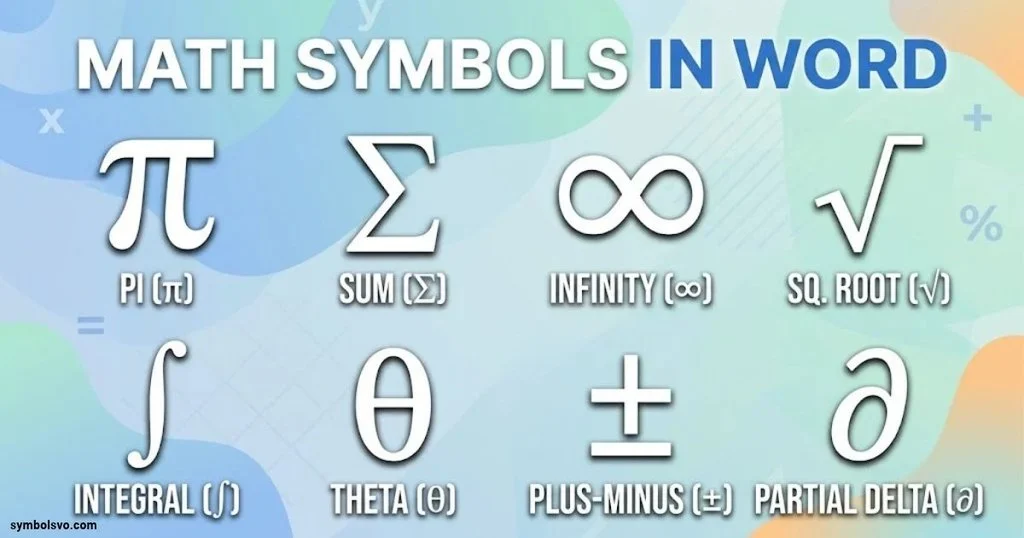
Mathematical symbols are essential for creating equations, calculations, scientific documents, and educational materials.
Microsoft Word includes a dedicated equation editor and a collection of mathematical symbols that you can insert into your documents.
Common Math Symbols in Word
| Symbol | Name | Unicode code |
| + | Plus | U+002B |
| − | Minus | U+2212 |
| × | Multiplication | U+00D7 |
| ÷ | Division | U+00F7 |
| = | Equal to | U+003D |
| ≠ | Not equal to | U+2260 |
| ≈ | Approximately equal to | U+2248 |
| ± | Plus-minus | U+00B1 |
| √ | Square root | U+221A |
| ∞ | Infinity | U+221E |
| ≤ | Less than or equal to | U+2264 |
| ≥ | Greater than or equal to | U+2265 |
| ∑ | Summation | U+2211 |
| ∫ | Integral | U+222B |
| π | Pi | U+03C0 |
| ∆ | Increment | U+2206 |
| ∂ | Partial differential | U+2202 |
| ∴ | Therefore | U+2234 |
| ∵ | Because | U+2235 |
| ∠ | Angle | U+2220 |
How to Insert Math Symbols in Word
You can insert mathematical characters through the Symbol menu or Equation feature.
Using the Equation Editor:
- Open your Word document.
- Place the cursor where you want the equation.
- Select Insert > Equation.
- Choose an existing equation or create a new one.
- Open the Equation tab to explore the available symbols.
- Select the required mathematical character.
On supported desktop versions of Word for Windows, you can also press Alt + = to create a new equation.
Useful Math AutoCorrect Commands
Word’s equation editor supports Math AutoCorrect commands for inserting mathematical characters.
| Command | Symbol |
| \alpha | α |
| \beta | β |
| \pi | π |
| \theta | θ |
| \infty | ∞ |
| \sqrt | √ |
| \leq | ≤ |
| \geq | ≥ |
| \neq | ≠ |
| \times | × |
| \div | ÷ |
| \pm | ± |
Type the command inside an equation and press the Spacebar to convert it into the corresponding symbol. Available commands can depend on the equation environment and Word version.
GD&T Symbols in Word
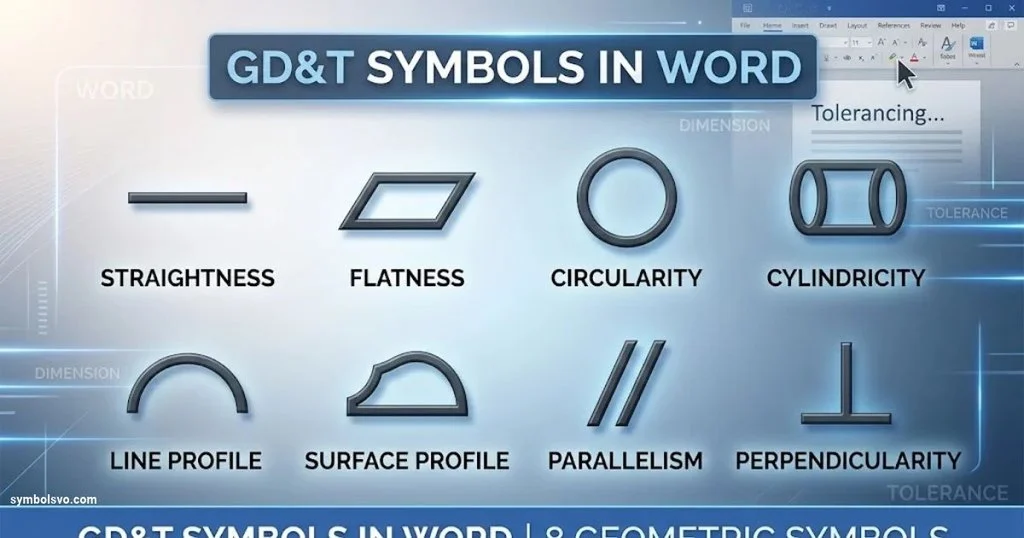
GD&T stands for Geometric Dimensioning and Tolerancing. It is an engineering language used to describe the allowable variation in the geometry of manufactured parts.
Engineers use GD&T symbols in technical drawings to communicate design requirements, including shape, orientation, location, and surface conditions.
Microsoft Word can display many GD&T characters, although creating a complete engineering drawing requires more than simply inserting symbols.
Common GD&T Symbols
Here are some commonly used geometric dimensioning and tolerancing symbols.
| Symbol | Name | General meaning |
| ⏤ | Straightness | Controls straightness of a line element |
| ⏥ | Flatness | Controls surface flatness |
| ○ | Circularity | Controls roundness |
| ⌭ | Cylindricity | Controls cylindrical form |
| ∠ | Angularity | Controls angular orientation |
| ∥ | Parallelism | Controls parallel orientation |
| ⊥ | Perpendicularity | Controls perpendicular orientation |
| ⌖ | Position | Controls the location of a feature |
| ◎ | Concentricity symbol | Legacy GD&T control; consult the applicable standard |
| ⌒ | Profile of a line | Controls the profile of a line |
| ⌓ | Profile of a surface | Controls the profile of a surface |
| ↗ | Circular runout | Controls circular runout |
| ↗↗ | Total runout | Informal visual notation; use the standardized drawing symbol |
The table provides visual references, not a complete engineering specification. Some GD&T symbols are uncommon Unicode characters, and their appearance or availability depends on the font.
How to Insert GD&T Symbols in Word
Follow these steps:
- Open your Word document.
- Select Insert > Symbol > More Symbols.
- Choose a font that supports the required character.
- Search for the desired symbol.
- Select it and click Insert.
You can also copy and paste supported characters into your document.
Important GD&T Formatting Tips
- Use an appropriate engineering font when available.
- Check that symbols display correctly after saving or exporting the document.
- Do not rely on visually similar characters as substitutes for standardized GD&T notation.
- Use the applicable ASME Y14.5 or ISO GPS standard when preparing engineering drawings.
For professional engineering work, the meaning and placement of each symbol must follow the relevant technical standard. A simple Unicode character may not contain all the information required by an engineering feature control frame.
Formatting Symbols in Word
Formatting symbols are special marks that help you understand the structure of a Word document.
They are also called nonprinting characters because they generally do not appear on the printed page.
These marks show spaces, paragraph endings, tabs, manual line breaks, and other formatting details.
Common Formatting Symbols in Word
| Symbol or mark | Name | What it indicates |
| ¶ | Paragraph mark | End of a paragraph |
| · | Space mark | A space between words |
| → | Tab mark | A tab character |
| ↵ | Manual line break | A line break created with Shift + Enter |
| ¤ | End-of-cell marker | End of a table cell |
| Page Break | Page break marker | Where a new page begins |
| Section Break | Section break marker | Separates document sections |
The exact appearance of some marks depends on the document layout and Word version.
Why Does Word Show Formatting Symbols?
Formatting marks help you identify hidden spacing and layout problems.
For example:
- Extra spaces can make text look uneven.
- Paragraph marks help you identify where paragraphs end.
- Tab marks show how text is aligned.
- Line break marks help you understand how text moves to a new line.
- Section breaks help you identify changes in page layout.
These marks are particularly useful when editing complicated documents, fixing formatting problems, or preparing a document for printing.
Paragraph Symbols in Word
The paragraph symbol in Microsoft Word looks like this:
¶
It is also called the pilcrow sign. Word uses it to represent the end of a paragraph when formatting marks are visible.
A paragraph mark is created when you press Enter on your keyboard.
For example:
This is the first paragraph. ¶
This is the second paragraph. ¶
This is the third paragraph. ¶
Each paragraph has its own paragraph mark.
What Does the Paragraph Symbol Do?
The paragraph mark contains formatting information associated with a paragraph. This can include alignment, indentation, line spacing, and other paragraph settings.
When you delete a paragraph mark, the formatting of the surrounding text may change because Word combines the affected paragraphs.
How to Show Paragraph Symbols in Word
If you want to see paragraph symbols in your document:
- Open Microsoft Word.
- Select the Home tab.
- Find the Paragraph group.
- Click the Show/Hide button (¶).
- Word will display paragraph marks throughout the document.
You can also press Ctrl + Shift + 8 on Windows to toggle nonprinting characters.
The paragraph symbol is useful for editing, but you generally do not need to keep it visible while reading or printing a document.
How to Turn Off Paragraph Symbols in Word
If paragraph symbols suddenly appear throughout your Word document, you may have accidentally enabled the Show/Hide formatting option.
You can hide these marks without deleting any text or changing your document’s actual content.
Method 1: Turn Off the Show/Hide Button
This is the quickest way to hide paragraph symbols.
- Open your Word document.
- Go to the Home tab.
- Find the Paragraph group.
- Look for the ¶ button.
- Click it once to turn off formatting marks.
The paragraph symbols should disappear from your document.
Method 2: Use the Keyboard Shortcut
You can also use a keyboard shortcut.
On Windows:
Ctrl + Shift + 8
Press these keys together to show or hide nonprinting characters.
Make sure you use the number 8 from the main keyboard, not the numeric keypad.
Method 3: Change Word Display Settings
If paragraph symbols continue appearing, check your display preferences.
- Click File.
- Select Options.
- Open the Display section.
- Find the option labeled Always show these formatting marks on the screen.
- Uncheck Paragraph marks.
- If Show all formatting marks are selected, clear it if you want to hide all formatting marks.
- Click OK.
This changes the display preferences rather than removing paragraph marks from your document.
How to Remove Paragraph Symbols in Word on Mac
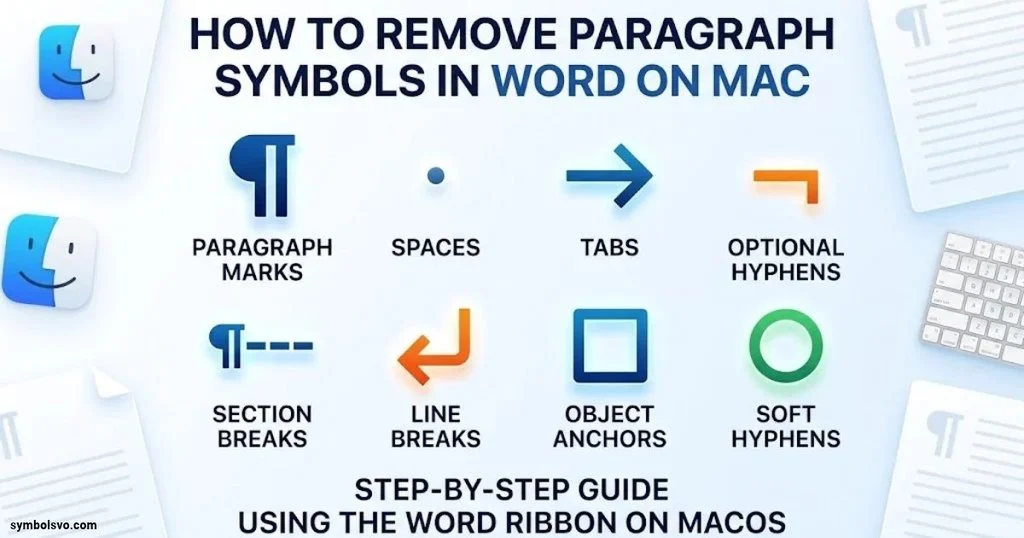
If you use Microsoft Word on a Mac, you can hide paragraph symbols through the Home tab or Word preferences.
The process is slightly different from Windows.
Method 1: Use the Show/Hide Button on Mac
- Open Microsoft Word on your Mac.
- Open the document containing paragraph symbols.
- Select the Home tab.
- Find the Paragraph section.
- Click the Show/Hide button (¶).
Word will hide the visible paragraph marks.
Method 2: Use the Mac Keyboard Shortcut
You can also toggle formatting marks using:
Command (⌘) + 8
Press the shortcut again if you want to display the marks.
Method 3: Change Word Preferences
If paragraph symbols remain visible, follow these steps:
- Open Microsoft Word.
- Click Word in the top menu bar.
- Select Preferences or Settings, depending on your version.
- Open View.
- Find the Show Non-Printing Characters section.
- Clear the Paragraph Marks option.
- Close the settings window.
The paragraph symbols should no longer appear in your document.
Remember: Hiding paragraph symbols does not delete them. They are part of Word’s normal paragraph structure. You can turn them back on whenever you need to inspect the document’s formatting.
Frequently Asked Questions
How Do I Find All Symbols in Microsoft Word?
Open your document and select Insert > Symbol > More Symbols. You can browse different fonts and character collections to find currency signs, mathematical characters, arrows, special punctuation, and other symbols.
What Is the Shortcut for Inserting Symbols in Word?
There is no single shortcut for every symbol. You can use Alt codes, Unicode codes with Alt + X, or individual keyboard shortcuts. For example, type 221E and press Alt + X to insert the infinity symbol (∞).
How Do I Insert a Special Character in Word Without Using the Mouse?
Use a Unicode hexadecimal code followed by Alt + X. For example, type 00A9 and press Alt + X to insert ©. You can also use supported keyboard shortcuts for frequently used characters.
Why Are Some Symbols Not Showing Correctly in Word?
Some fonts do not contain every Unicode character. If a symbol appears as an empty square or missing character, change the font to one that supports it. Segoe UI Symbol is a useful option for many special characters.
Do Word Symbols Appear When I Print a Document?
Normal inserted symbols generally appear in printed documents. However, formatting marks such as paragraph symbols, spaces, and tab indicators are nonprinting characters and are normally hidden when printing.
Conclusion
Microsoft Word offers a wide range of symbols for everyday writing, business documents, mathematics, engineering, and other purposes. You can find currency signs, arrows, check marks, Spanish characters, mathematical symbols, and special Unicode characters through its built-in tools.
Using keyboard shortcuts and Unicode codes can save time when inserting frequently used characters. The Insert Symbol option is also helpful when you need to explore different character collections. For technical documents, always check that the selected symbol follows the relevant engineering or mathematical standard.
Formatting symbols and paragraph marks are equally useful when editing documents. If they become distracting, you can easily hide them through the Show/Hide button or Word preferences. Keep this guide handy whenever you need to find, insert, or manage symbols in Microsoft Word.

I’m Rowan Whitaker, a British writer fascinated by the symbols surrounding us every day. I explore their meanings, origins, cultural significance, and changing interpretations. From ancient marks to modern signs, I enjoy making symbolism easier to understand. My writing helps curious readers discover the hidden messages behind familiar shapes, images, and signs.
Books:
- The Meaning Behind Symbols
- A Modern Guide to Symbolism
 Freddie Beaumont
 Ellis Montgomery